Creating a Player Script
Now that we have created a player model, its time for scripting! In this part of the guide, we'll introduce you to programming in C# by writing a simple movement script. Scripting in unity may seem confusing at first, but we will go step-by-step and explain what each codeblock does to simplify thing as much as possible.
Configuring Input Manager
For this code to work, you must be using Unity's old input system! Lets do that first.
-
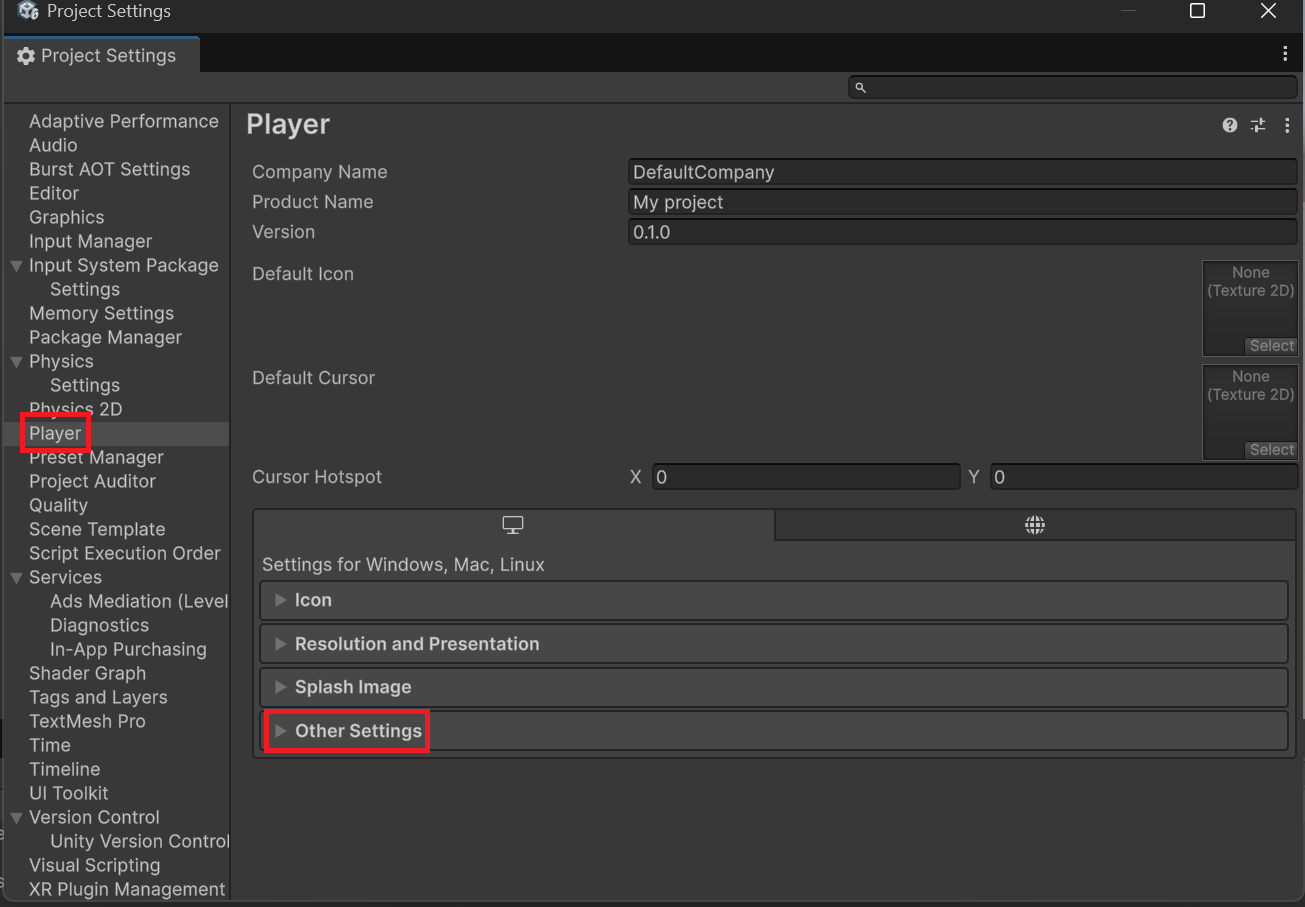
go to Edit > Project Settings > Player. Once you are here, click the other settings dropdown.
-
Once you clicked the dropdown, scroll down to "Active Input Handling" and select Input Manager (Old)
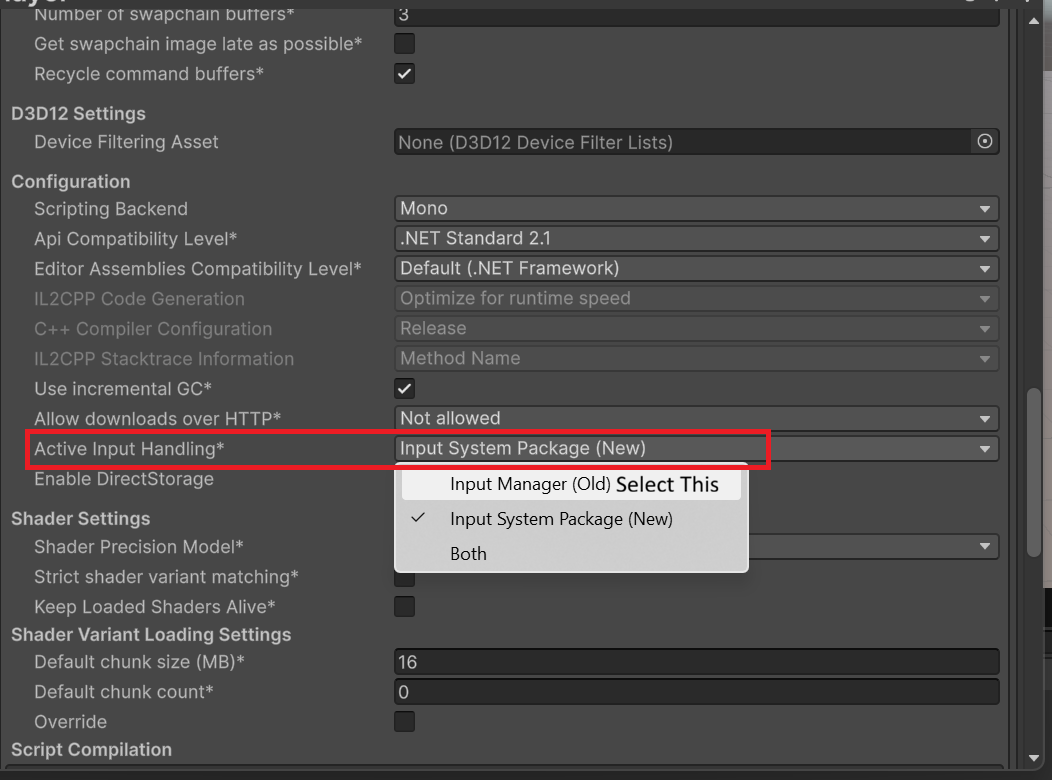
This is a very simple step, but an important one! We need to enable the old Input Manager because our code uses .GetAxis() which is part of Unity’s legacy input system. Our code won't work unless that system is active, since the new manager uses a different API, meaning it can't read our code (resulting in errors).
Adding a script to the player
-
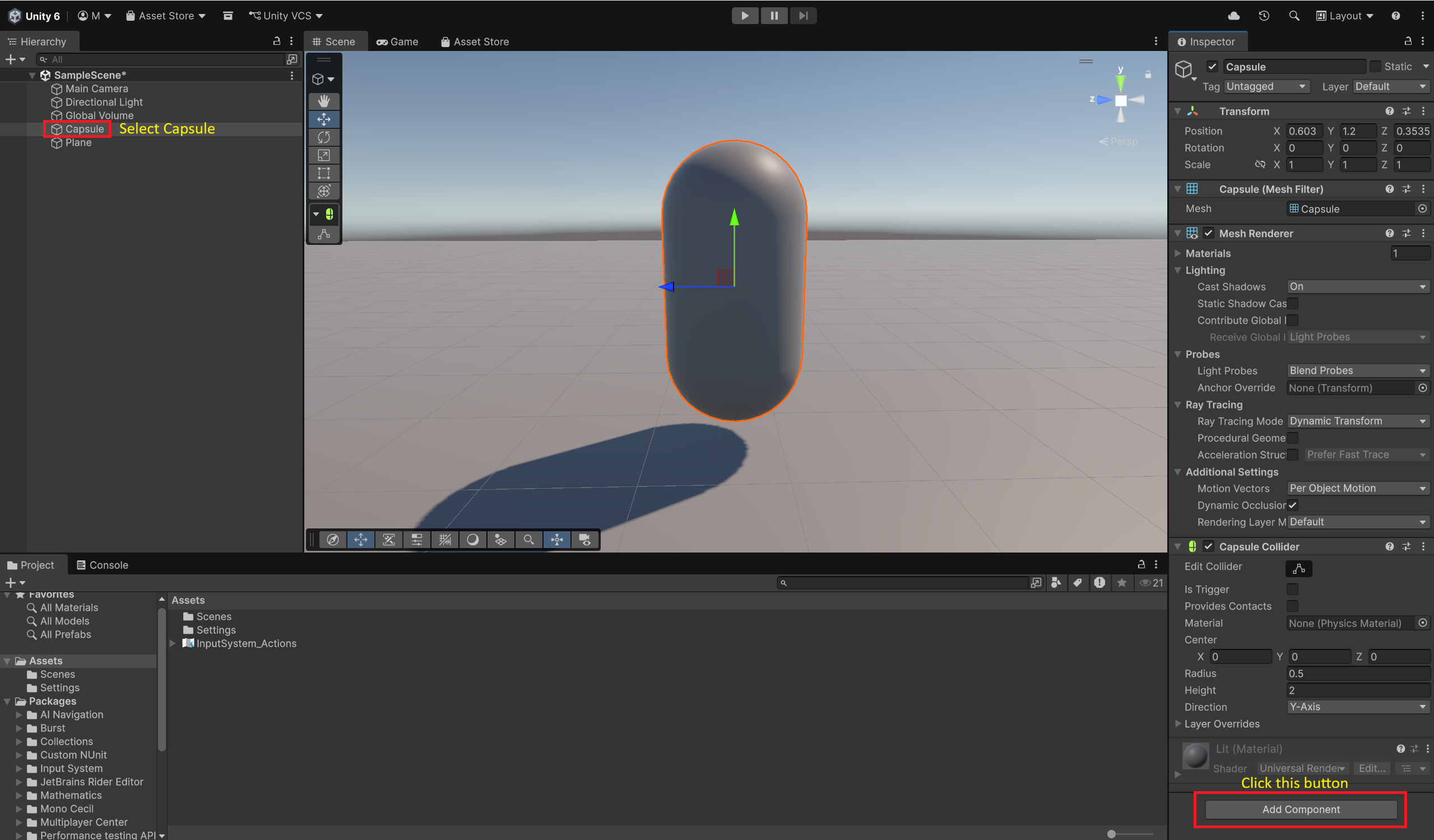
To create your player script, click your player object, and in the inspector, click Add Component
-
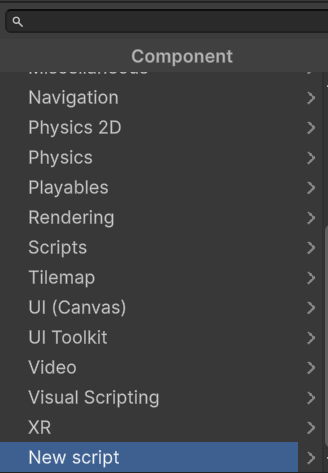
A menu will now pop up. Scroll down to the bottom of the menu, and select New script.
-
Name your script something simple, like MovementScript
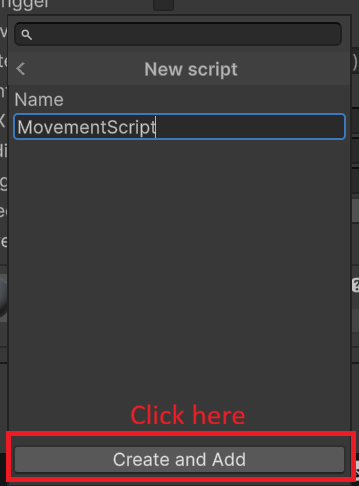
-
Lastly, save your script
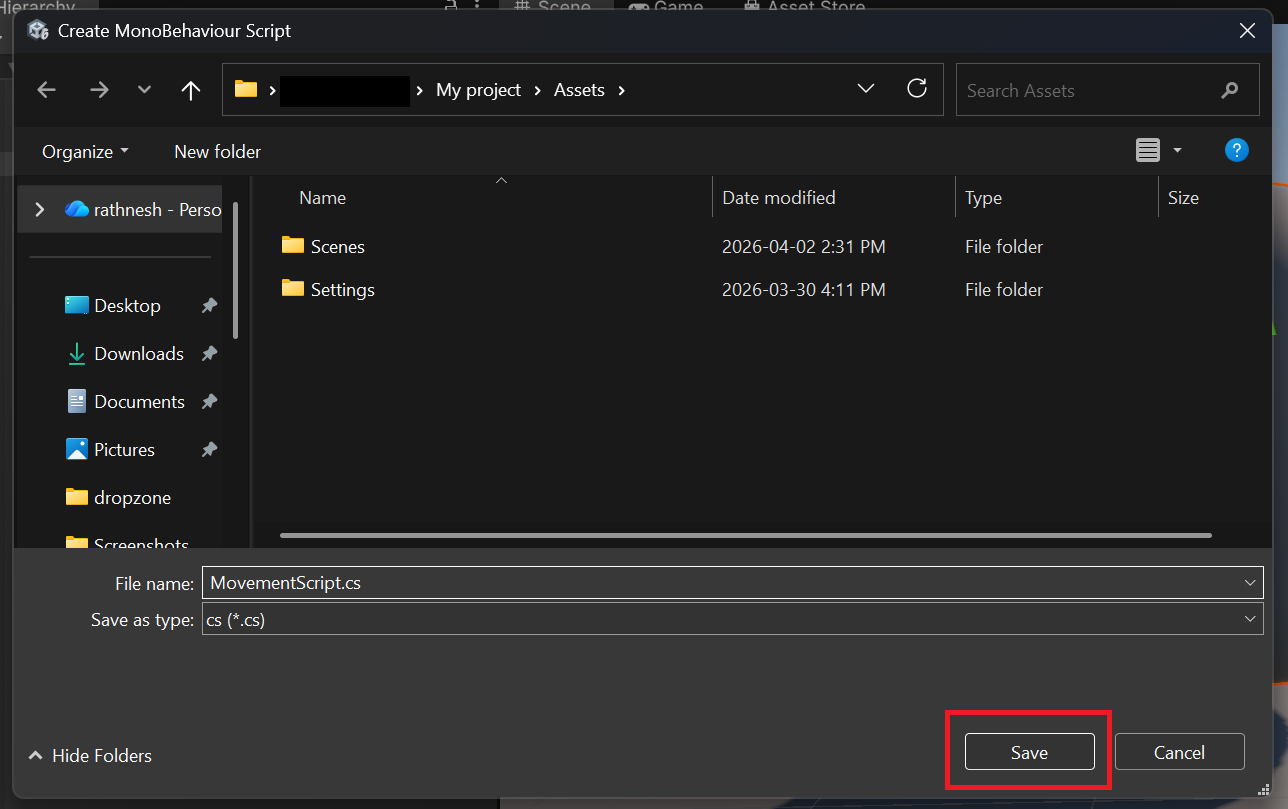
just save your script in this location
Adding code
This script will provide a basic first-person player movement using Unity's CharacterController component. First, you will want to open your .cs file in an IDE such as VSCode.
Features:
- Walking
- Sprinting
- Jumping
- Gravity
- Ground detection
Variables
using System.Collections;
using System.Collections.Generic;
using UnityEngine; // code will not work without this

public class MovementScript : MonoBehaviour {

    public CharacterController controller;

    public float walkSpeed = 12f;
    public float sprintSpeed = 10f; // feel free to customize to your liking
    public float gravity = -9.81f; // -9.81 is the constant for gravity
    public float jumpHeight = 2f;

    public Transform groundCheck;
    public float groundDistance = 0.4f;
    public LayerMask groundMask;

    private Vector3 velocity;
    private bool isGrounded;

    // Start is called once before the first execution of Update after the MonoBehaviour is created
    void Start() { //remove this function from your script

    }

    void Update() {
        // code goes here
    }
}
What is MonoBehaviour?
MonoBehaviour is Unity’s base class that allows classes to accept all of Unity’s functions like Awake, Update, etc. A reason not to use MonoBehaviour is if you don’t need any special Unity functionality for that class, which is rare.
Here is the variables needed for our script. Add all this above the void Update() function and get rid of the void Start() function
This part of the code is to check if our player is grounded
| code-examples.md | |
|---|---|
CheckSphere creates an invisible sphere under the player.
If it touches the ground layer, that means the player is grounded.
velocity.y = -2f prevents the player from floating
To get player input:
float x = Input.GetAxis("Horizontal"); // A/D or Left/Right
float z = Input.GetAxis("Vertical");   // W/S or Forward/Back
float x and float z return values between -1 and 1.
These mappings come from Unity’s Input Manager settings. To check these settings, go to Edit > Project Settings > Input Manager.
For controlling player movement
// Movement Direction
Vector3 move = transform.right * x + transform.forward * z; // ensures movement is relative to where the player is facing.
controller.Move(move * walkSpeed * Time.deltaTime);
What controller.Move does:
- handles collision safely
Time.deltaTimeensures smooth movement regardless of FPS
To control player speed
float speed;

// checks if Left Shift is activated
if (Input.GetKey(KeyCode.LeftShift)) {
    speed = sprintSpeed; // activates when Left Shift is held
}
else {
    speed = walkSpeed; // if Left shift not held, reverts to normal walking speed
}
sprintSpeed is activated. Otherwise you fall back to walkSpeed
For jumping:
    if (Input.GetButtonDown("Jump") && isGrounded) {
        velocity.y = Mathf.Sqrt(jumpHeight * -2f * gravity);
    }
Input.GetButtonDown("jump") checks for the spacebar press, and only allows jumping when grounded. The highlighted code is a formula for realistic jump height.
Lastly, gravity and player movement
    // Gravity
    velocity.y += gravity * Time.deltaTime; // Continuously pulls player downward
    controller.Move(velocity * Time.deltaTime); // Applies falling and jumping movement separately
velocity.y += gravity * Time.deltaTime builds falling speed over time
controller.Move(velocity * Time.deltaTime) converts that speed into actual movement
Full Script
Here is what the full script should like:
using System.Collections;
using System.Collections.Generic;
using UnityEngine;

public class MovementScript : MonoBehaviour {

    public CharacterController controller;

    public float walkSpeed = 12f;
    public float sprintSpeed = 10f;
    public float gravity = -9.81f;
    public float jumpHeight = 2f;

    public Transform groundCheck;
    public float groundDistance = 0.4f;
    public LayerMask groundMask;

    private Vector3 velocity;
    private bool isGrounded;

    void Update() {
        // Ground Check
        isGrounded = Physics.CheckSphere(groundCheck.position, groundDistance, groundMask);

        if (isGrounded && velocity.y < 0) {
            velocity.y = -2f; // Keeps player grounded
        }

        // Input
        float x = Input.GetAxis("Horizontal");
        float z = Input.GetAxis("Vertical");

        // Movement Direction
        Vector3 move = transform.right * x + transform.forward * z;
        controller.Move(move * walkSpeed * Time.deltaTime);

        // Sprint
        float speed;

        // checks if Left Shift is activated
        if (Input.GetKey(KeyCode.LeftShift)) {
            speed = sprintSpeed; // activates when Left Shift is held
        }
        else {
            speed = walkSpeed; // if Left shift not held, reverts to normal walking speed
        }

        // Jump
        if (Input.GetButtonDown("Jump") && isGrounded) {
            velocity.y = Mathf.Sqrt(jumpHeight * -2f * gravity);
        }

        // Gravity
        velocity.y += gravity * Time.deltaTime;
        controller.Move(velocity * Time.deltaTime);
    }
}
Common Errors
If you run into any errors, don't panic! The most common ones are:
- Semicolons not placed at the end
- Case-Sensitive errors (such as "Input" not having an uppercase I)
- Missing references in the Inspector (
CharacterControllerorGroundChecknot assigned) - Ground layer not set correctly
Whenever you finish your code, always make sure to double check for these minor errors
Success
We have succesfully finished the player movement script! It's now time for the last task in this document, the camera script
Conclusion
In this task, you learned how to:
- Create and attach a C# script to a Unity GameObject
- Use CharacterController for movement
- Implement player input using Unity’s Input system
- Implement jumping using a physics-based formula
- Apply gravity to create realistic falling behavior
- Use ground detection to prevent mid-air jumping